
Frequently Asked Questions
Install guides
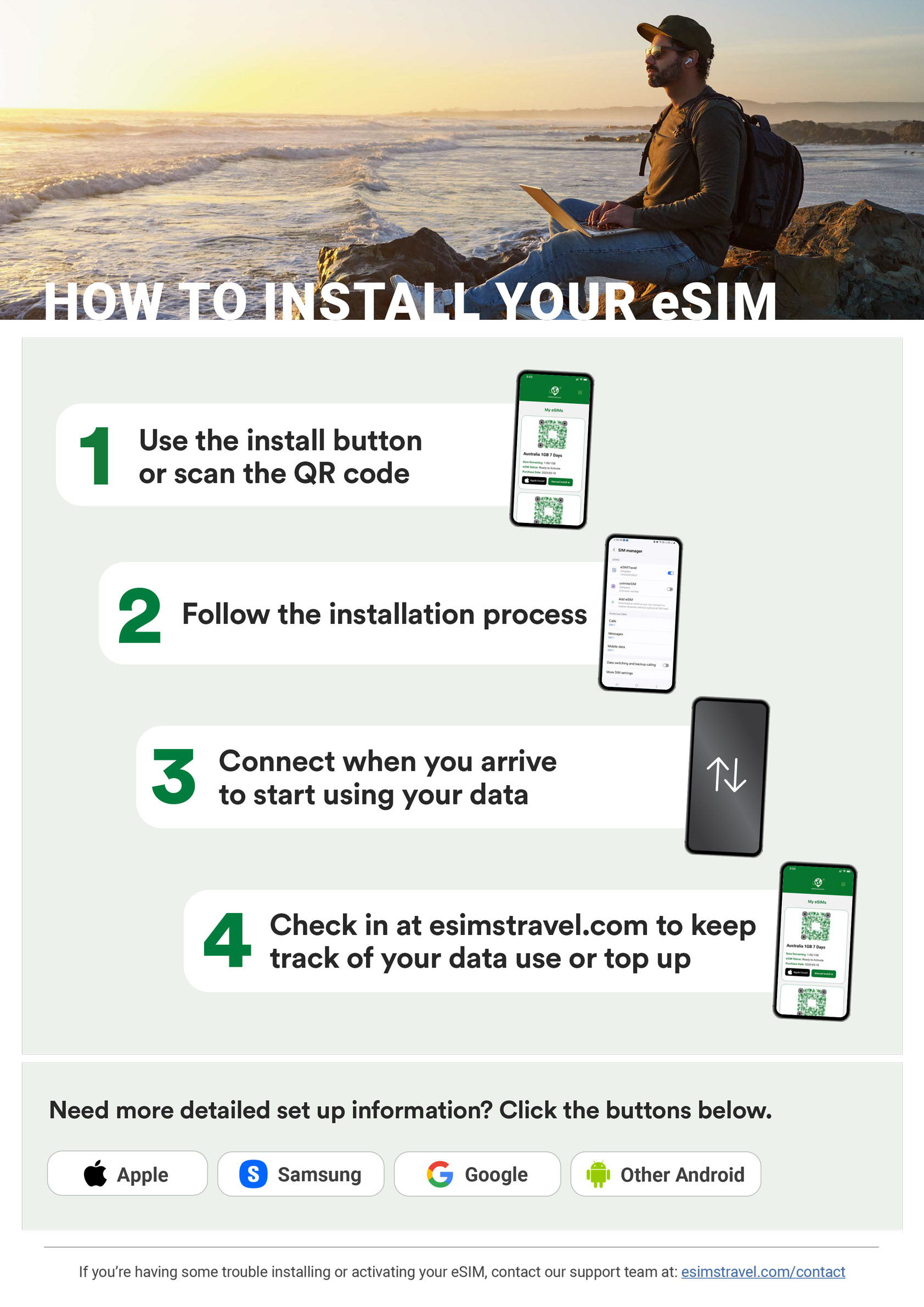
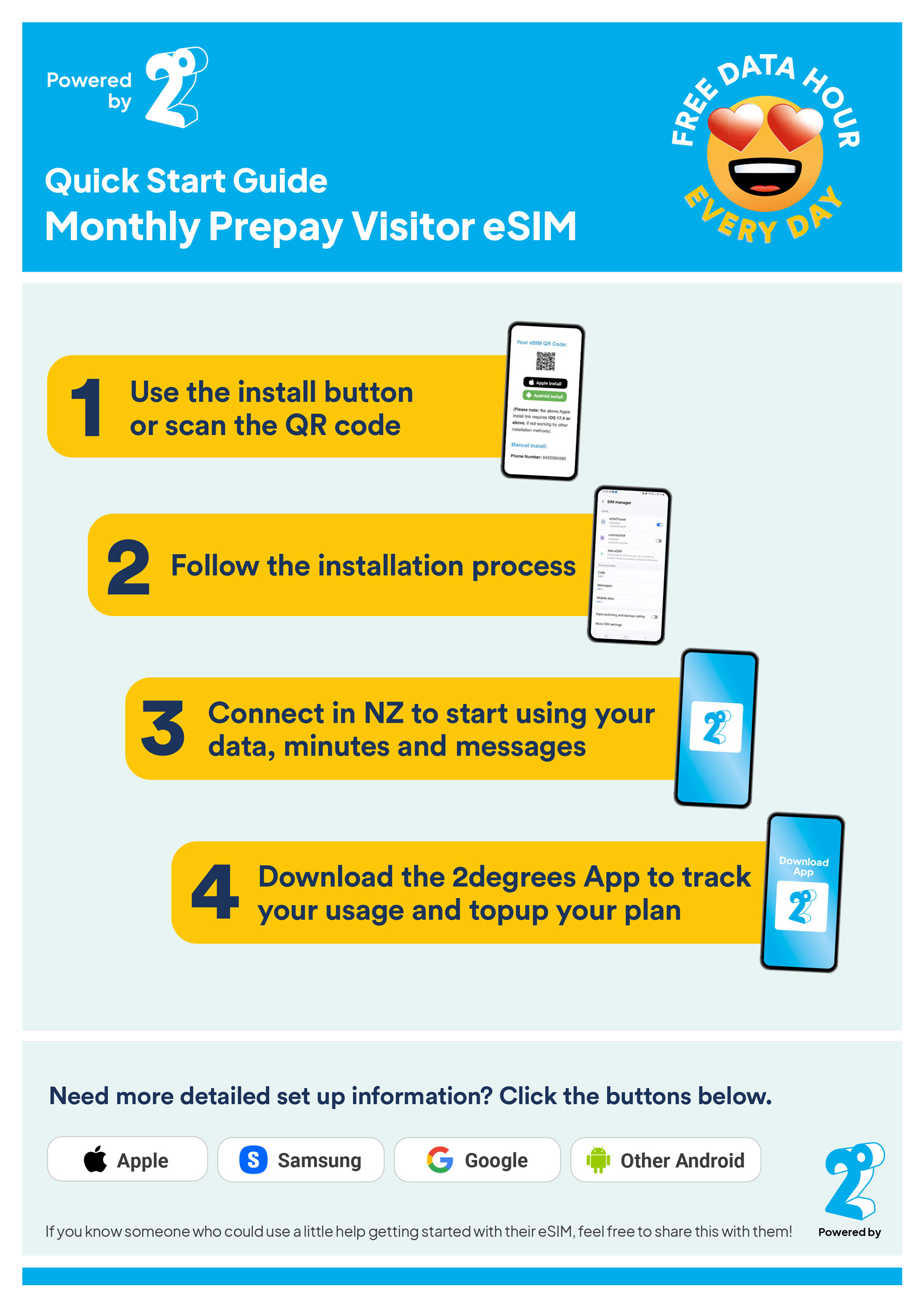
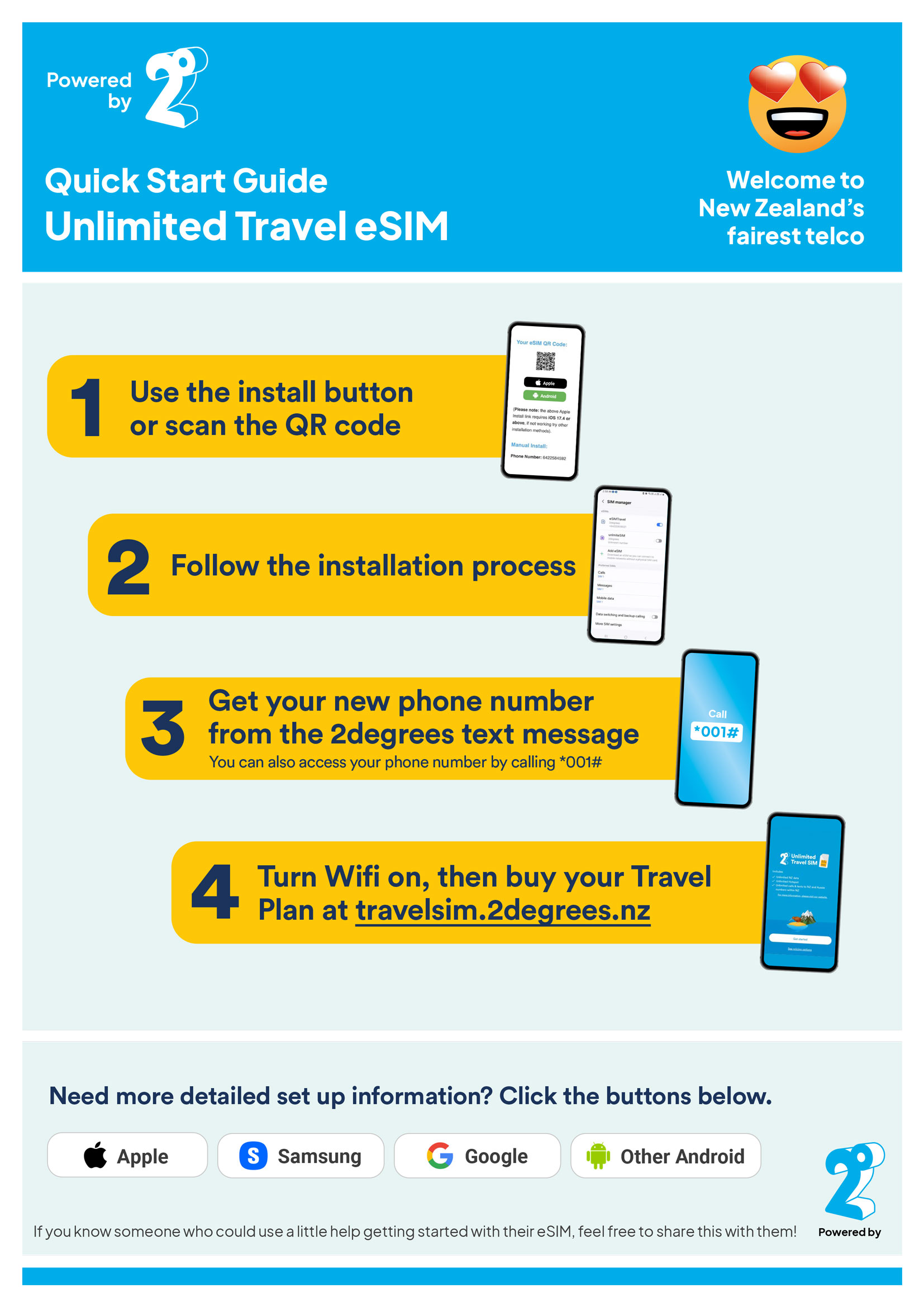
Choose the guide that matches your eSIM type. The guides include phone-brand steps for installing your eSIM.
Common issues + fixes
An eSIM is a digital SIM built into many newer phones and devices. It lets you install a mobile plan without inserting a physical SIM card.
Please check your spam and junk folders first, as order emails can sometimes be filtered there.
If you still cannot find the email, your eSIM is always available by logging into the site and going to My eSIMs.
Open the install guide for your eSIM type at the top of this page, find your phone brand, and follow each step in order.
If the QR code has already been scanned, do not delete the eSIM from your phone before contacting us.
Before writing to us, please contact 2degrees directly for activation and network help.
- If you are in New Zealand and calling from a 2degrees phone, call 200.
- If you are calling from a non-2degrees SIM or eSIM, call 0800 022 022.
- If you are overseas, call +64 22 200 2000.
2degrees phone support is available Monday to Saturday, 8am to 8pm NZST, and Sundays and public holidays, 10am to 8pm NZST.
You can also visit a local 2degrees store for help: 2degrees store locator.
Check that mobile data is enabled for the eSIM, data roaming is switched on, and your phone is using the eSIM for mobile data. Restart your phone after changing these settings.
New Zealand eSIMs can only be installed and activated once you are in New Zealand. After you arrive in New Zealand, install and activate the eSIM, and the plan will start from that activation.
You can buy and set up most non-NZ travel eSIMs before you travel. The plan starts when it first connects to a supported network in the destination country.
Please activate your plan within 60 days of purchase.
This is relevant if you purchased a NZ 2degrees Monthly Prepay eSIM and set up autopay through the app or website. Autopay is not automatically turned on.
PDF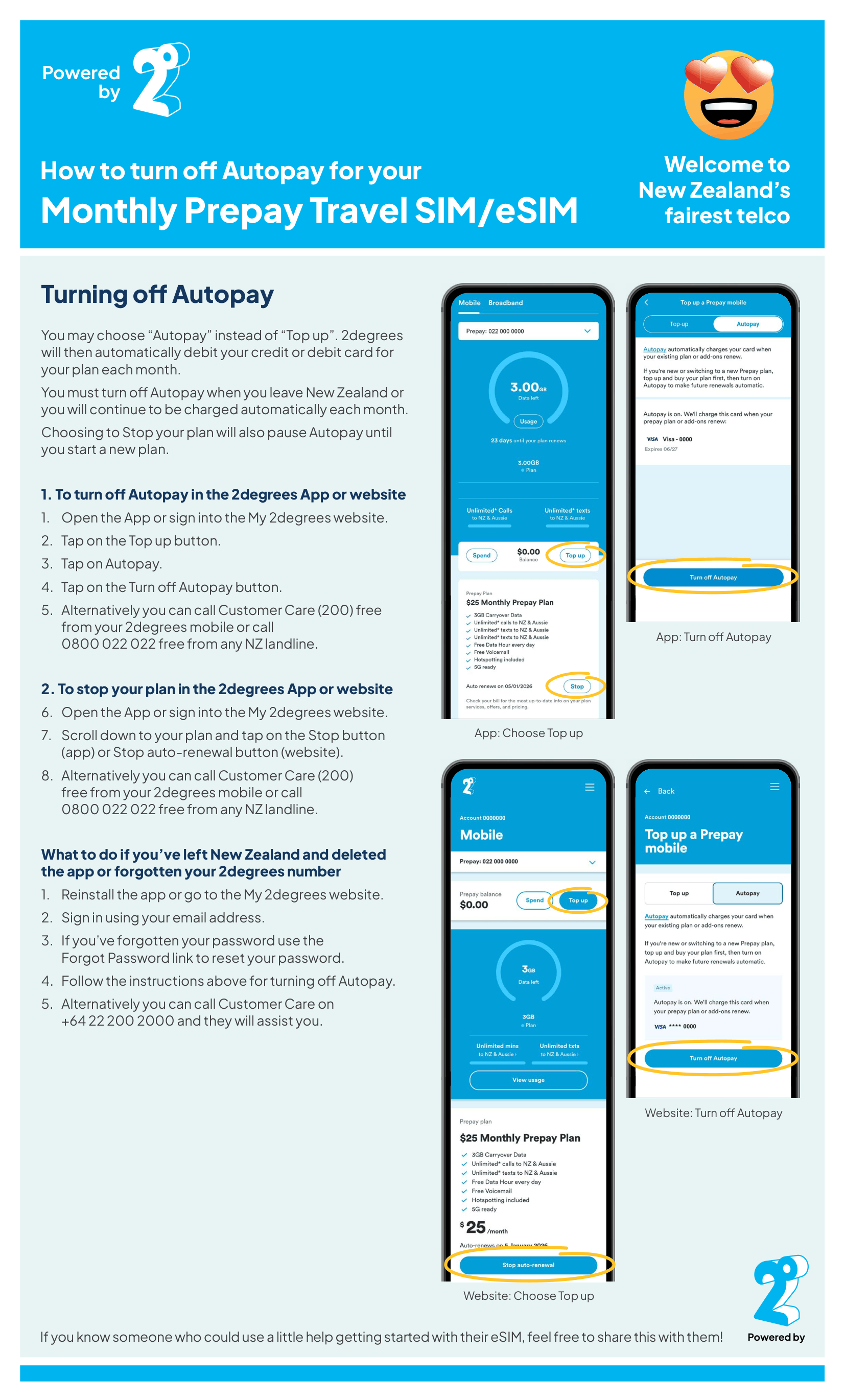 Autopay guide
Your phone must be unlocked and eSIM compatible. If you are not sure whether your phone supports eSIM, a quick online search of your phone model should confirm it.
Certain models may have exceptions based on their version, region, or carrier lock status.
NZ 2degrees eSIMs come with a local New Zealand phone number and SMS facility.
Non-NZ eSIMs are data only and do not include a local phone number for that country. Most travellers use apps such as WhatsApp and FaceTime for calls.
Before you travel: check with your regular carrier that you can still receive texts on your normal SIM/eSIM for online banking or verification services.
A data-only eSIM gives you mobile internet without voice or SMS. On dual-SIM phones, you can usually keep your regular SIM active for calls and texts while using the eSIM for data.
Check your regular carrier terms and roaming fees before you travel.
iPhone:
- Settings > Cellular/Mobile Data > Default Voice Line: select your regular SIM.
- Settings > Cellular/Mobile Data > Cellular Data: select your eSIM.
Android:
- Settings > Network & Internet or Connections > SIM cards.
- Under Calls and SMS, choose your regular SIM.
- Under Mobile Data, choose your eSIM.
Check your regular carrier terms and fees for roaming or verification services.
No. You can keep your physical SIM in your phone while using the eSIM for data. Just make sure your mobile data settings are using the eSIM to avoid unwanted roaming charges.
You will receive a notification when your data is running low or your plan is close to expiring. If you run out of data, you can purchase and install a new eSIM.
Yes, our eSIMs support tethering/hotspot.
- Make sure your regular SIM is active and set for voice/SMS if you need it.
- To switch data, return to Cellular/Mobile settings and choose the correct line for mobile data.
- Restart your phone after any changes.
Check with your carrier for network-specific settings or support options.
Only if your smartwatch supports mobile connectivity via eSIM and is not otherwise restricted. Please check your smartwatch manufacturer guide for compatibility and activation steps.
Apple Watch: Apple Watch is not inherently supported. It requires sharing the same eSIM with your iPhone, and both your iPhone and watch need to be eSIM compatible.